Tracking ScrollView Offsets in SwiftUI (Three Ways That Actually Work)
The question is trivial to ask and was, for years, awkward to answer: how far has this ScrollView scrolled?
UIKit hands you scrollView.contentOffset and moves on. SwiftUI took three attempts, and which one you reach for depends entirely on the oldest iOS version you still support: GeometryReader plus a PreferenceKey (iOS 13), scrollPosition(id:) with scrollTargetLayout() (iOS 17), or onScrollGeometryChange (iOS 18).
This post covers all three, with code taken from a demo app we built and ran on device rather than from memory. But it opens somewhere else, because that part cost us an afternoon: the PreferenceKey snippet that has been copy-pasted across the internet for the better part of a decade has a bug in it, and the bug makes your offset freeze at 0.0.
The bug: a PreferenceKey that always reports 0.0
Here is the version you will find in the top search results, in Stack Overflow answers, and in a good number of production codebases:
struct ScrollOffsetPreferenceKey: PreferenceKey {
    static var defaultValue: CGFloat = 0

    static func reduce(
        value: inout CGFloat,
        nextValue: () -> CGFloat
    ) {
        value = nextValue()
    }
}
It compiles. It reads correctly. It reports 0.0 forever.
The problem is reduce. A PreferenceKey is not a private channel between one view and its ancestor. It is a fold across the entire subtree. SwiftUI walks a container's children in layout order and calls reduce once per child, accumulating as it goes. Crucially, children that never call .preference(...) still take part in the fold: they contribute defaultValue.
So with defaultValue of 0 and a last-writer-wins reduce, a single sibling laid out after your probe is enough to overwrite the real measurement with zero. And in the standard layout (a zero-height probe at the top of a VStack, with all your actual content below it) that sibling is guaranteed to exist. The reduction ends on the content, not on the probe, and the content says nothing, which the key faithfully records as 0.
The fix is an optional, not a coordinate space
Make the value optional. nil then means "this child had nothing to report", which is different from "this child reported zero", and the reduce can prefer the first real answer regardless of sibling order:
struct ScrollOffsetPreferenceKey: PreferenceKey {
    static let defaultValue: CGFloat? = nil

    static func reduce(
        value: inout CGFloat?,
        nextValue: () -> CGFloat?
    ) {
        value = value ?? nextValue()
    }
}
Same probe, same coordinate space, same everything else. The only change is that the fold stopped being order-dependent. That is the entire bug.
How we know the coordinate space was never the problem
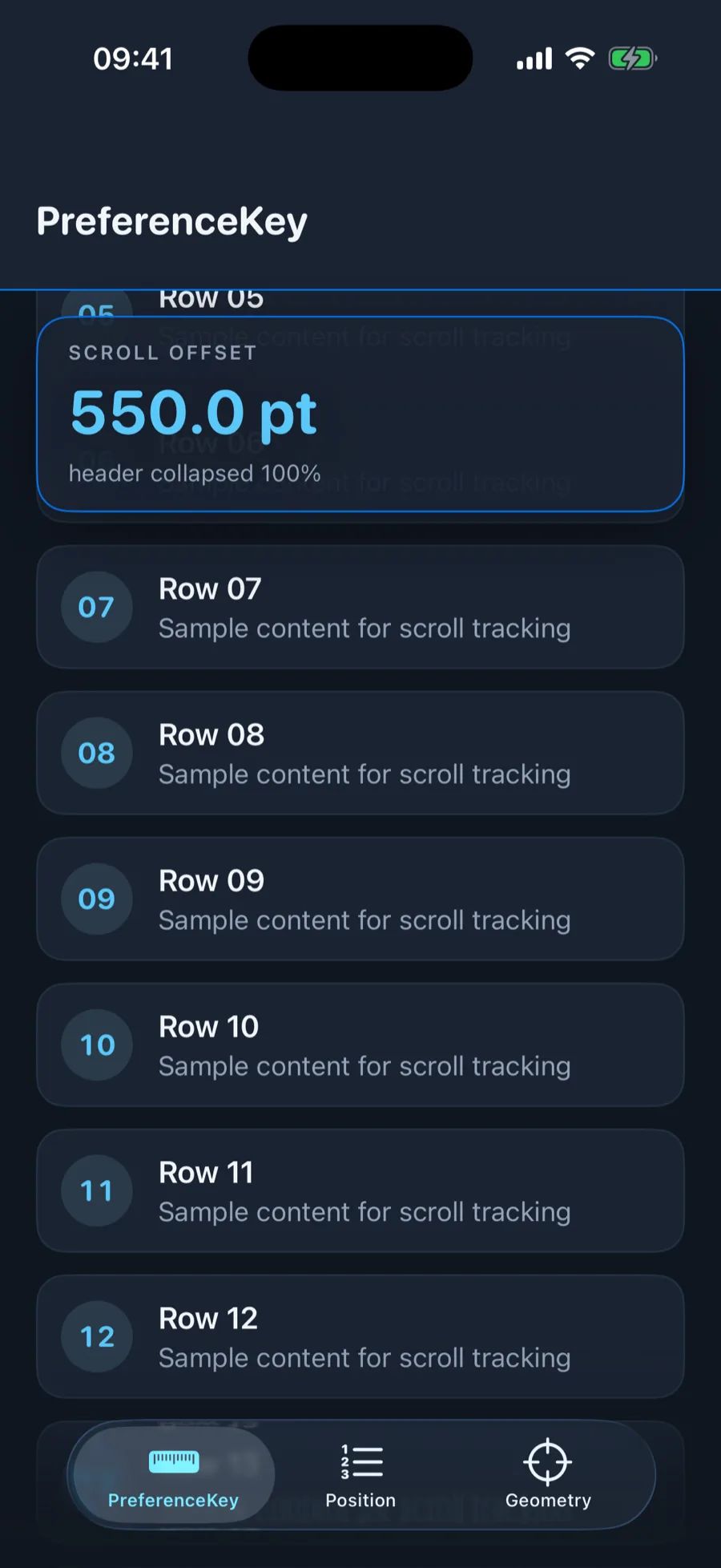
Almost every article about this failure blames the coordinate space, so we tested that directly. We built a diagnostic screen that published the same probe's minY in four coordinate spaces at once (.local, .global, .named("scroll") and .scrollView) and put all four numbers on screen side by side.
All four read 0.0. Not off by a safe-area inset, not off by the header height: identically, statically zero, through the whole scroll. That is the tell. A coordinate-space mistake gives you a wrong number that still moves. A number that never moves means onPreferenceChange never fired at all. That points at reduce, not at geometry.
A wrong coordinate space gives you a wrong number that still moves. A frozen number means the callback never ran.
After switching to the optional key, the same diagnostic screen showed .named("scroll") and .scrollView agreeing exactly (both reading -336.3 at the same scroll position) while .local stayed pinned at 0 and .global carried the safe-area offset. That is the real behaviour, and it is the guidance worth keeping: use .named(...) or .scrollView, and only reach for .global when you genuinely want screen coordinates.
Technique 1: GeometryReader + PreferenceKey (iOS 13+)
This is still the only option if you support iOS 13 through 16, and it is still the most flexible of the three, because it measures points rather than answering a fixed question.
The measurement itself is a zero-height Color.clear pinned to the very top of the scroll content. Its minY in the scroll view's coordinate space is 0 at rest and goes negative as the content scrolls up:
/// A zero-height probe pinned to the top of the
/// scroll content. Its minY is 0 at rest and turns
/// negative as the content scrolls up.
struct ScrollOffsetProbe: View {
    let space: String

    var body: some View {
        GeometryReader { proxy in
            let top = proxy
                .frame(in: .named(space))
                .minY

            Color.clear.preference(
                key: ScrollOffsetPreferenceKey.self,
                value: top
            )
        }
        .frame(height: 0)
    }
}
Pulling it into a screen, the pieces that matter are the coordinate space name, the guard that unwraps the optional, and the sign flip:
struct CollapsingHeaderScreen: View {
    private static let space = "scrollSpace"

    /// Points scrolled from the top. Negative while
    /// the content rubber-bands past the top edge.
    @State private var scrollOffset: CGFloat = 0

    var body: some View {
        ScrollView {
            VStack(spacing: 0) {
                ScrollOffsetProbe(space: Self.space)

                // Room for the floating header.
                Color.clear.frame(height: topInset)

                rows
            }
        }
        .coordinateSpace(.named(Self.space))
        .onPreferenceChange(
            ScrollOffsetPreferenceKey.self
        ) { contentTop in
            guard let contentTop else { return }
            // Flip the sign so the value reads as
            // points scrolled. The + 0 normalises
            // -0.0, which would format as "-0.0".
            scrollOffset = -contentTop + 0
        }
        .overlay(alignment: .top) { header }
    }
}
The + 0 looks like a typo and is not. Negative zero is a real IEEE 754 value, it survives negation, and String(format:) will happily print it as "-0.0" in your header. Adding zero normalises it.
Two costs to be aware of. This runs inside layout, so the callback fires on essentially every frame of a scroll. Do arithmetic in it, never network calls or heavy formatting. And the preference value must be Equatable, which CGFloat? satisfies; if you widen the key to carry a struct, make it Equatable or SwiftUI cannot tell when to notify you.
Building a sticky, collapsing header from the offset
Nobody wants a scroll offset. They want the thing the offset drives, and nine times out of ten that is a header that shrinks and sticks. Normalise the offset to a 0-to-1 progress value first, and everything else becomes interpolation:
private static let expandedHeight: CGFloat = 168
private static let collapsedHeight: CGFloat = 100

/// 0 while fully expanded, 1 once fully collapsed.
private var collapseProgress: CGFloat {
    let range = Self.expandedHeight
        - Self.collapsedHeight
    return min(max(scrollOffset / range, 0), 1)
}

private var headerHeight: CGFloat {
    Self.expandedHeight
        - (Self.expandedHeight - Self.collapsedHeight)
        * collapseProgress
}
The clamp is load-bearing. Rubber-banding past the top produces a negative offset, and without min/max your header inflates past its expanded size and your subtitle's opacity goes above 1. With progress clamped, the rest is ordinary:
Text("PreferenceKey")
    .font(.system(
        size: 34 - 12 * collapseProgress,
        weight: .bold,
        design: .rounded
    ))

Text("GeometryReader publishes the offset.")
    .opacity(1 - collapseProgress)
    .frame(
        height: (1 - collapseProgress) * 38,
        alignment: .top
    )
    .clipped()
Animating the subtitle's frame height alongside its opacity, rather than only fading it, is what stops the title from jumping when the subtitle disappears.
The structural decision is that the header lives in an .overlay(alignment: .top), not inside the scroll content. Put it inside and you build a feedback loop: collapsing the header changes the content height, which changes the offset, which collapses the header further. The overlay keeps the header out of the measurement, and a Color.clear spacer reserves the space it visually occupies.
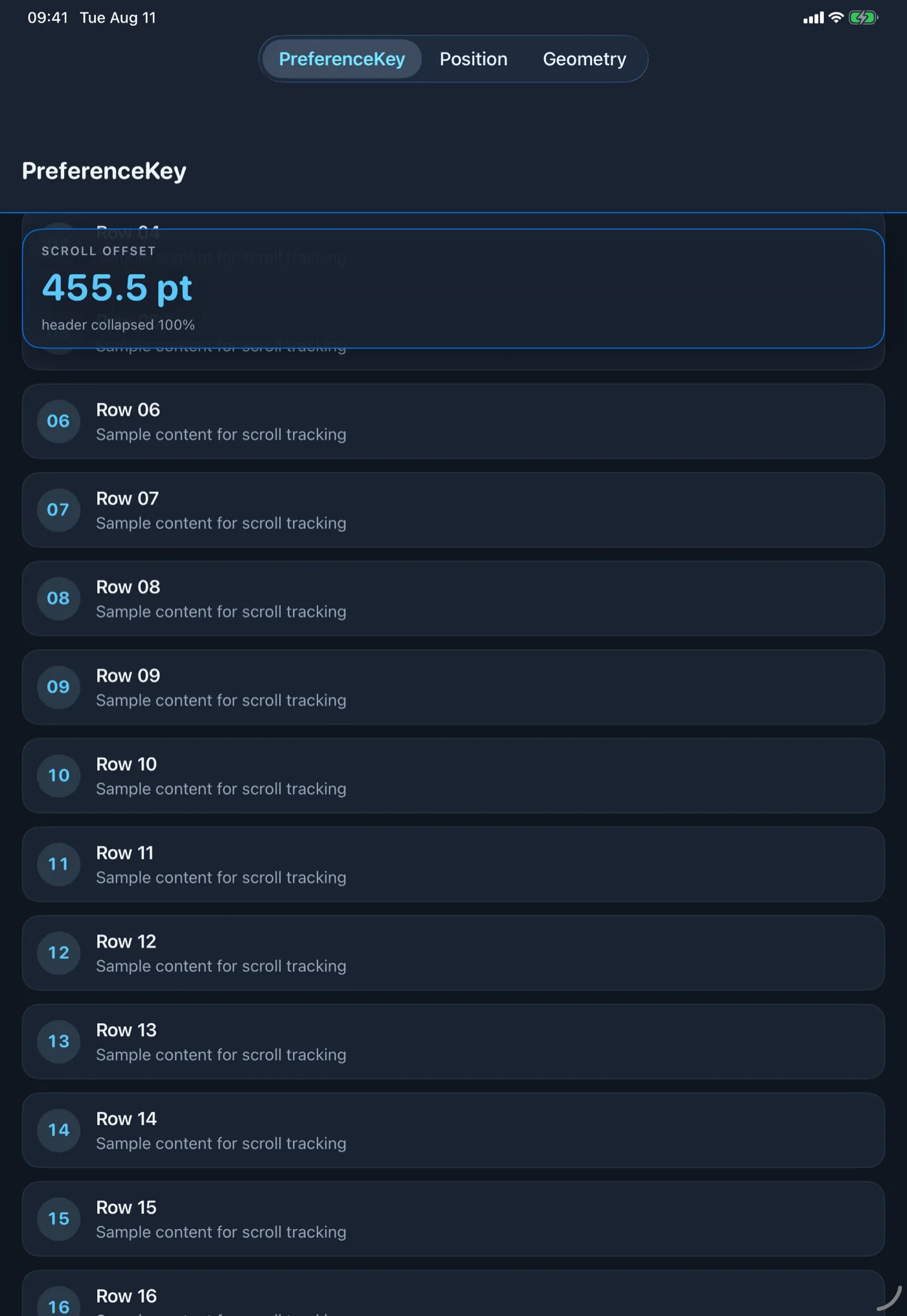
That spacer height is worth measuring rather than hard-coding, because the same layout puts the tab bar in a different place on iPad:
.background {
    GeometryReader { proxy in
        let bottom = proxy
            .frame(in: .named(Self.space))
            .maxY

        Color.clear.onChange(
            of: bottom,
            initial: true
        ) { _, newBottom in
            // Only sample while expanded, so
            // collapsing never shifts content.
            if collapseProgress == 0 {
                topInset = newBottom + 12
            }
        }
    }
}
Technique 2: scrollPosition(id:) and scrollTargetLayout() (iOS 17+)
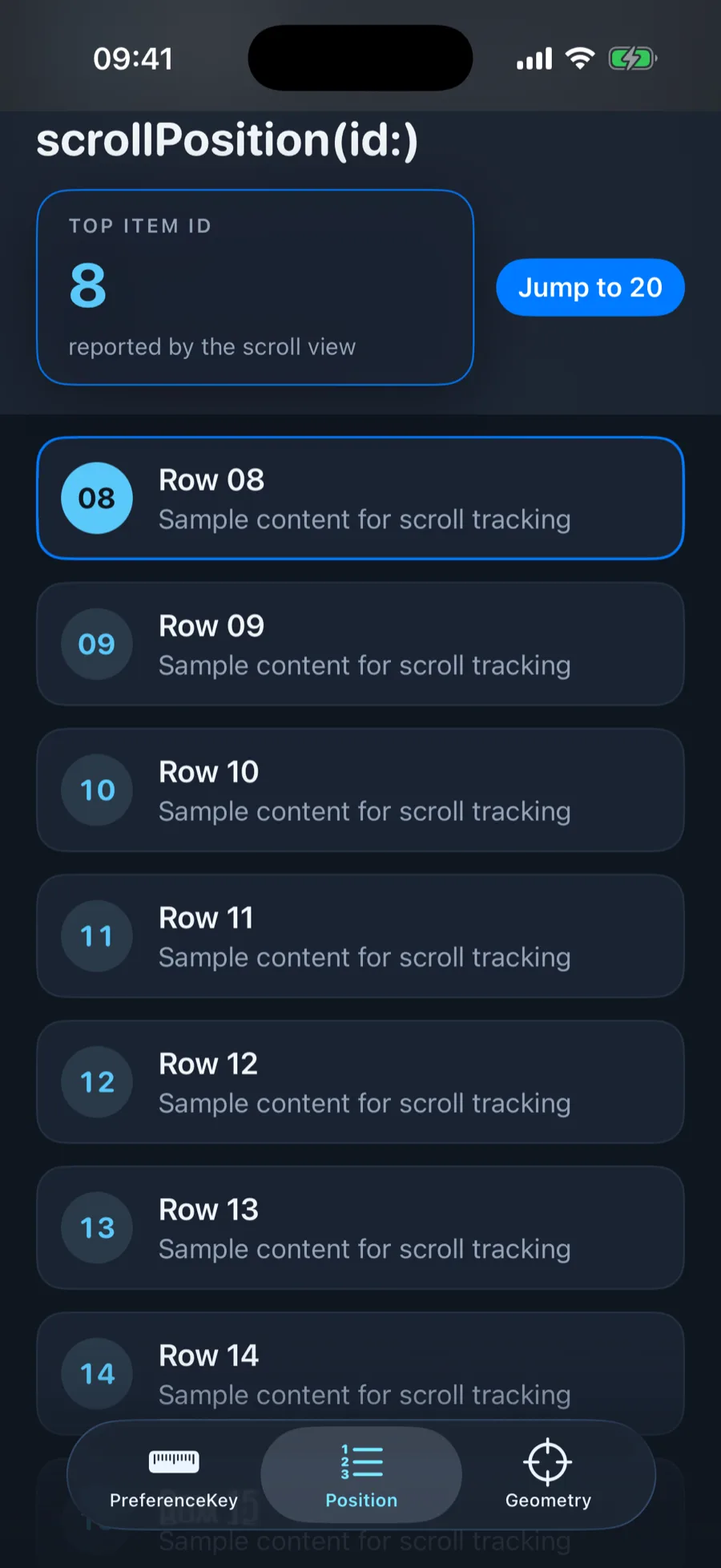
iOS 17 answers a different, usually better question. Instead of telling you how many points you have travelled, the scroll view tells you which item is currently at the top edge. That is what you actually wanted for section indexes, pagination, analytics, and "load more when we near the end".
struct ScrollPositionScreen: View {
    /// Id of the item resting at the top edge.
    /// nil until the scroll view reports a position.
    @State private var scrolledID: DemoItem.ID?

    var body: some View {
        ScrollView {
            LazyVStack(spacing: 12) {
                ForEach(DemoItem.all) { item in
                    DemoRow(
                        item: item,
                        isFocused: item.id == scrolledID
                    )
                }
            }
            .padding(.horizontal, 20)
            // Marks every row in this stack as a
            // scroll target. Without it the binding
            // stays nil forever.
            .scrollTargetLayout()
        }
        .scrollPosition(id: $scrolledID)
        .scrollTargetBehavior(.viewAligned)
        .animation(
            .snappy(duration: 0.2),
            value: scrolledID
        )
    }
}
The missing .scrollTargetLayout() is the single most common reason this appears not to work. It goes on the stack whose subviews are the targets, not on the ScrollView, and without it the binding sits at nil with no warning and no error.
The binding is writable, which replaces most ScrollViewReader code
Reading the position is half of it. Assigning to the same binding scrolls the view, so the ScrollViewReader-plus-proxy dance is no longer necessary for the common case:
Button("Jump to 20") {
    withAnimation(.easeInOut) { scrolledID = 20 }
}
The iOS 18 overload is worth knowing about when you need more control over the scroll itself: it can target an edge as well as an id, and it carries the position as a value type you can hold and mutate:
@State private var position = ScrollPosition()

ScrollView {
    // ...
}
.scrollPosition($position)

// Elsewhere, from a button or a task:
position.scrollTo(id: 20, anchor: .top)
position.scrollTo(edge: .bottom)
What neither form gives you is a number. If you need a continuous value (a parallax translation, a progress bar, a gradient that ramps with distance), this technique is the wrong tool and you want the next one.
Technique 3: onScrollGeometryChange (iOS 18+)
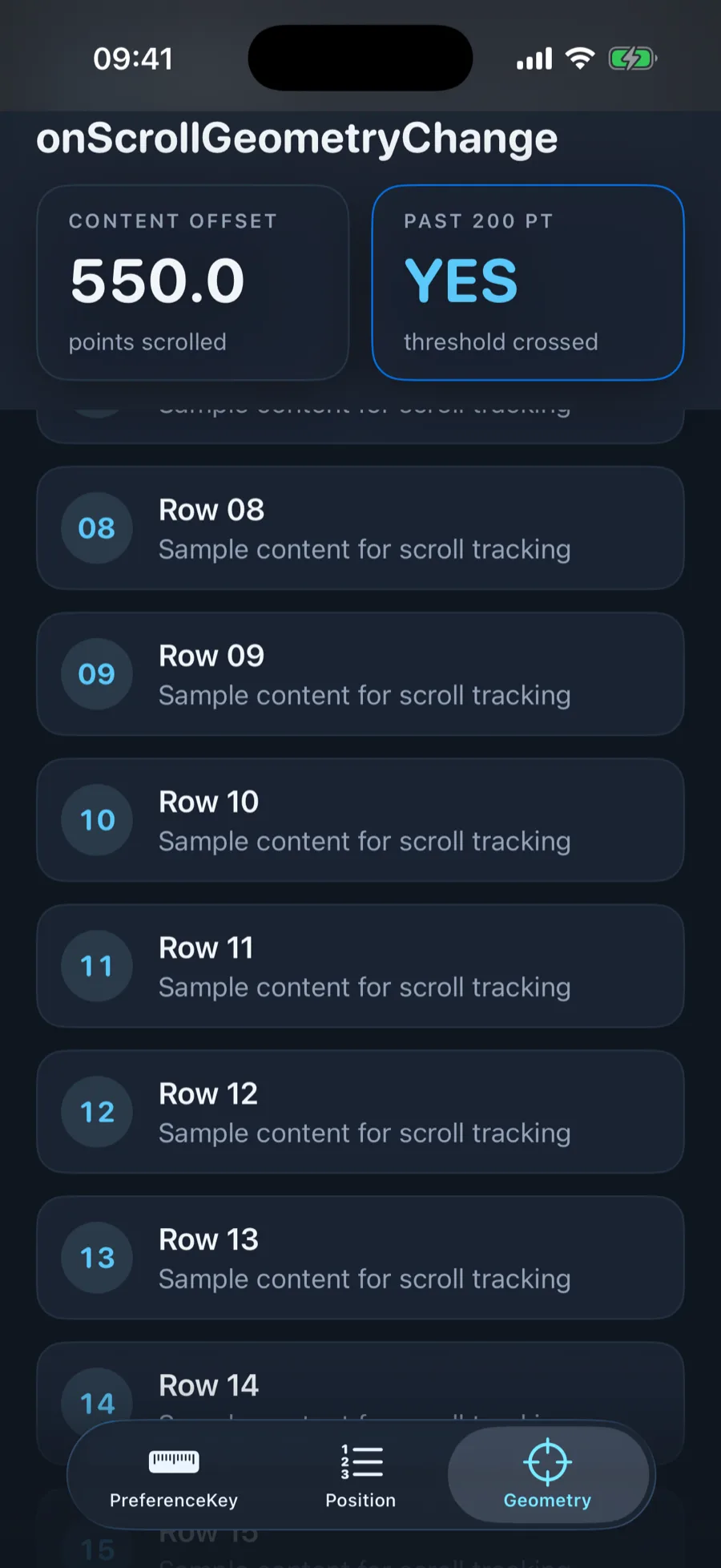
iOS 18 finally made this first-class. One modifier, no probe, no coordinate space, no PreferenceKey. The transform closure receives a ScrollGeometry (content offset, content size, content insets, container size and visible rect) and returns the derived value you actually care about. The action closure then fires only when that derived value changes.
struct ScrollGeometryScreen: View {
    @State private var contentOffset: CGFloat = 0
    @State private var isPastThreshold = false

    private static let threshold: CGFloat = 200

    var body: some View {
        ScrollView {
            rows
        }
        // Continuous: fires on every scroll frame.
        .onScrollGeometryChange(
            for: CGFloat.self
        ) { geometry in
            geometry.contentOffset.y
                + geometry.contentInsets.top
        } action: { _, newOffset in
            contentOffset = newOffset
        }
        // Discrete: fires only when it flips.
        .onScrollGeometryChange(
            for: Bool.self
        ) { geometry in
            geometry.contentOffset.y
                + geometry.contentInsets.top
                > Self.threshold
        } action: { _, isPast in
            isPastThreshold = isPast
        }
    }
}
Adding contentInsets.top to contentOffset.y is not cosmetic. Raw contentOffset.y starts at a negative value equal to the top inset, so a list at rest reports something like -59 rather than 0. Adding the inset back gives you the zero-based "points scrolled" number that every piece of UI you are about to build expects.
Derive the smallest value you can
The leverage in this API is the return type of the transform, and it is easy to miss. Return a CGFloat and you get an update on every frame of every scroll. Return a Bool and you get exactly one update each time the threshold is crossed: SwiftUI runs the transform continuously but only calls action when the result differs.
Most scroll-driven UI is genuinely discrete: show the nav bar title, pin the search field, enable the scroll-to-top button, fire the analytics event. Deriving a Bool instead of a Double turns hundreds of state mutations per scroll into two. That, more than the syntax, is why this beats the PreferenceKey version.
Which one should you use?
Your deployment target settles most of this, and the rest comes down to whether you need a number or a name.
- iOS 18+ and you need points: onScrollGeometryChange. It is less code, it is cheaper, and it exposes content size and visible rect too. That makes "how close are we to the bottom" a one-liner.
- iOS 17+ and you need to know which item is on screen: scrollPosition(id:) with scrollTargetLayout(). Do not compute this from points; the scroll view already knows.
- iOS 17+ and you need to scroll programmatically: the same binding, written to. Reach for ScrollViewReader only for the cases the binding cannot express.
- iOS 13–16, or a measurement no API exposes: GeometryReader plus an optional-valued PreferenceKey. Slower, fiddlier, and still the escape hatch for anything unusual.
- Mixed deployment targets: write the feature against the newest API and gate it with #available, keeping the PreferenceKey path as the fallback. The two produce the same number, so the UI code above them does not need to branch.
One thing that does not change across generations: whatever you compute, keep the work in the callback trivial. All three of these run during scrolling, and the fastest way to make a smooth list stutter is to do real work sixty times a second.
The short version
If your PreferenceKey offset is stuck at 0.0, the coordinate space is not why. SwiftUI folds reduce over every sibling, siblings that never publish contribute defaultValue, and a last-writer-wins reduce with a non-optional default will hand you that default. Make the value optional, keep the first non-nil reading, and the same code you already wrote starts working.
Then, if you can afford the deployment target, delete it and use onScrollGeometryChange instead.
Comments
Loading comments…